
Kids Timer
A countdown children can follow without reading numbers
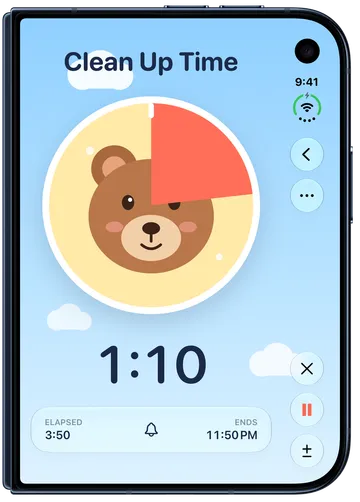
In the Kids Timer, a coral pie covers a bear and shrinks as the time runs down, so children can see how much time is left without reading the numbers. When the time is up, the pie is gone and the whole bear is showing.
Use it when a child needs to see that something is about to end, such as cleaning up toys, leaving the park, finishing screen time, or getting ready for bed.
Create a Kids Timer
Section titled “Create a Kids Timer”- In the timer list, tap + to open Add Timer.
- Under Templates, choose Kids Timer.
- Enter a name your child will recognize, such as “Clean Up Time.”
- Set the duration. A new Kids Timer starts at 5 minutes.
- Tap Start to save the Kids Timer and start it now, or tap the checkmark to save it for later.
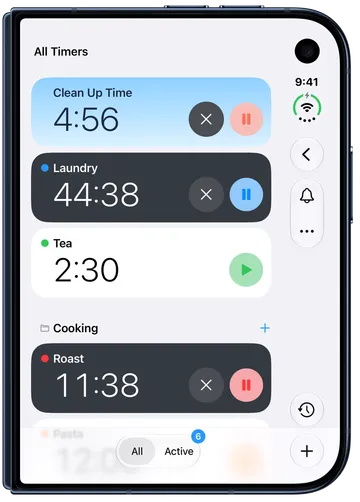
A Kids Timer is saved in your timer list, so you can start it again whenever you need it. While it runs, its card in the list shows the same sky as the timer.
Read the Kids Timer
Section titled “Read the Kids Timer”Open a Kids Timer to see it full screen.
- The pie starts full and shrinks as time passes. The less coral there is, the less time is left.
- The bear is uncovered a little at a time. When the time is up, the pie is gone and the bear is fully showing.
- The time left appears in large numbers with the dial, for grown-ups and for children who are learning to read a clock.
- Elapsed and Ends show how long the timer has run and when it will finish.
The Kids Timer has one look for now: the bear on a sky with drifting clouds.
Pause, adjust, or stop
Section titled “Pause, adjust, or stop”The buttons beside the timer work the same as on any Timer:
- Pause and Resume stop and restart the countdown. The pie stays where it is while the Kids Timer is paused.
- Adjust Duration (±) adds or removes time, for example +1m for one more minute. See Add or remove time.
- Cancel (×) ends the countdown.
When the time is up, Timer+ plays the Kids Timer’s sound and shows a notification, like any other Timer. If you don’t hear anything, see Timer+ sound troubleshooting.
On iOS 26 or later, you can mark a Kids Timer as urgent so its end rings as an alarm, even in Silent mode or a Focus. On the Kids Timer’s screen, tap the alerts button with the bell and turn on Urgent, or turn it on in the Kids Timer’s editor. See Urgent Timers.
For more about the Kids Timer, see Visual timer for kids.