Timer Types
Find the right timer for what you're timing
Timer+ has four timer types. Each one answers a different question: how long something should take, how long something has taken, how far away a date is, or what happens next in a sequence.
| If you want to… | Use | For example |
|---|---|---|
| Count down a set amount of time | Timer | Steep tea for 2 minutes 30 seconds |
| Measure how long something takes | Stopwatch | Time a run and record each lap |
| Count down to a date and time | Countdown | See how many days are left until a vacation |
| Run several timed parts in order | Routine | A workout with work and rest intervals |
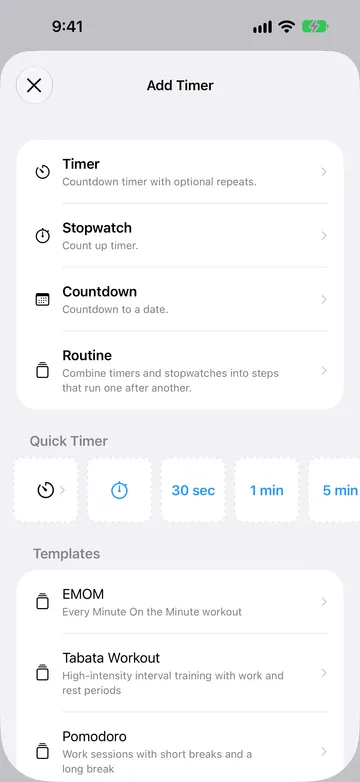
To add any of them, tap + in your timer list. The Add Timer screen lists the four types first, then Quick Timer shortcuts and routine Templates.
A Timer counts down from a duration you choose, such as 25 minutes, and plays a sound when it reaches zero. Choose a Timer when you know how long something should take: cooking, laundry, a nap, a parking meter, or a short break.
A Timer can repeat, so the same duration runs again when it finishes. Use one Timer for one duration. If you need different durations back to back, such as work and rest, use a Routine instead.
Stopwatch
Section titled “Stopwatch”A Stopwatch counts up from zero until you stop it. Choose a Stopwatch when you do not know in advance how long something will take and want to measure it: a run, a meeting, a task, or time spent practicing.
Tap Lap to record split times without stopping the Stopwatch.
See Use a Stopwatch and record laps.
Countdown
Section titled “Countdown”A Countdown counts toward a specific date and time rather than a duration. Choose a Countdown for events on the calendar: a trip, a birthday, a launch day, or a deadline. Far from the date it shows a relative amount of time, such as months and days; in the last few days it becomes a live clock. After the date passes, it keeps counting up, so it can also show how long it has been since something happened.
A Timer and a Countdown both count down. The difference is what you set: a Timer starts from a length of time, while a Countdown ends at a moment on the calendar. A Countdown runs as soon as you save it; there is nothing to start or pause.
See Count down to a date.
Routine
Section titled “Routine”A Routine runs a sequence of Timer and Stopwatch steps in order. Choose a Routine when an activity has several parts: intervals with rests, a Pomodoro session with breaks, or a recipe with timed stages.
Routines can repeat groups of steps, add rests between steps or repeats, give each repeat a different name, and speak announcements such as the time remaining or what is up next.
Start from a template
Section titled “Start from a template”The Templates section on the Add Timer screen creates a ready-made Routine, such as EMOM, Tabata Workout, or Pomodoro. A template is a starting point, not a separate timer type. Once added, it is an ordinary Routine that you can rename and edit.
See Create a Routine.
Quick Timers
Section titled “Quick Timers”Quick Timers let you start timing immediately without setting up a saved timer. They are a quick way to use a Timer or a Stopwatch, not an additional type.
The Quick Timer row on the Add Timer screen offers:
- A Timer button that opens the Quick Timer screen, where you can enter any duration and an optional name.
- A Stopwatch button that starts a Quick Stopwatch right away.
- 30 sec, 1 min, 5 min, 10 min, 30 min, and 1 hr buttons that start a Quick Timer as soon as you tap them.
A Quick Timer or Quick Stopwatch appears in your timer list while it runs, then Timer+ removes it when you are done. If Timer History is on, the run is still recorded there.
Use a saved Timer or Stopwatch instead when you will time the same thing again and want to keep it in your list with its own name and color, ready to start with one tap.
Learn more in Quick Timers and Quick Stopwatches.
Alerts by type
Section titled “Alerts by type”Timers, Stopwatches, and Routine steps can play sounds and Announcements during a run, including recurring alerts. Timers also play their end sound, and a Countdown plays its sound at the target date and time. See Alerts, sounds, and announcements for the schedules and Announcements each type offers.