Timer
Count down from a set amount of time
A Timer counts down from a duration you choose, such as 2 minutes 30 seconds for tea or 45 minutes for laundry. When it reaches zero, it plays the sound you picked. A Timer can also repeat the same countdown several times in a row.
Timer+ keeps each Timer you save in your timer list so you can start it again later, and you can run several Timers at once. For a one-off countdown you don’t need to keep, start a Quick Timer instead.
Choose a different type when a Timer doesn’t fit:
- To count up from zero, use a Stopwatch.
- To count down to a date and time, use a Countdown.
- For a task with several stages, rests between repeats, or steps that wait for you, use a Routine.
For a side-by-side comparison, see Choose the right timer type.
Create a Timer
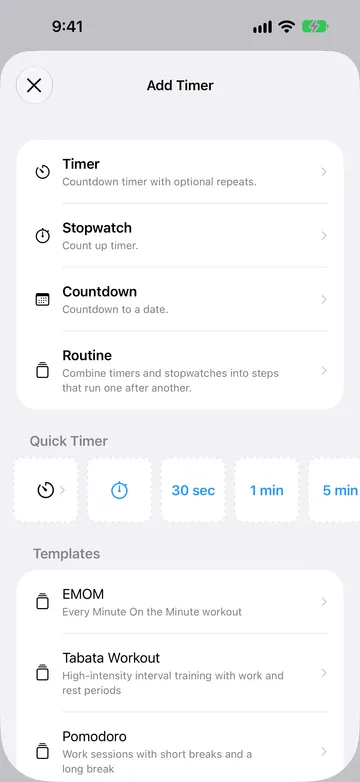
Section titled “Create a Timer”- In the timer list, tap + to open Add Timer.
- Choose Timer.
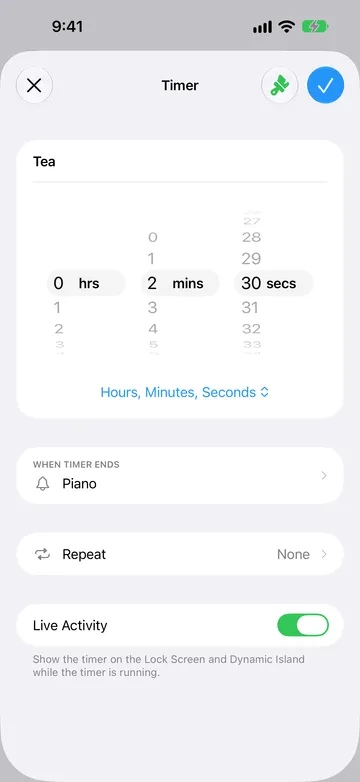
- Enter a name, such as “Tea.” The name is optional.
- Set the duration.
- Choose the options you need: When Timer Ends, Repeat, and Live Activity. To give the Timer a color, tap the paintbrush button at the top of the editor.
- Tap Start to save the Timer and start it now, or tap the checkmark to save it for later.
A new Timer starts at 1 minute and uses your default sound. If you’re using Timer+ without Pro and already have several saved timers, Timer+ may offer an upgrade when you add another.
Set the duration
Section titled “Set the duration”Turn the wheels to set the duration. The menu below the wheels switches between two formats:
- Hours, Minutes, Seconds sets up to 99 hours, 59 minutes, and 59 seconds.
- Days, Hours, Minutes sets up to 99 days, 23 hours, and 59 minutes. This format uses whole minutes, so switching to it removes any seconds.
Each Timer remembers its own format. The shortest possible Timer is 1 second.
Choose what plays when the Timer ends
Section titled “Choose what plays when the Timer ends”Tap When Timer Ends to choose the sound. Choose None for a silent Timer. Use Loop to keep the sound playing, or Once to play it a single time.
Use Add Alert in the Timer editor to add Halfway, Time Elapsed, Time Remaining, or recurring alerts after the start or before the end. These alerts can play a sound, Announcements, or both. You can add one alert of each schedule type. For schedules, sounds, and background notification limits, see Alerts.
To change the sound that new timers start with, see Change the Default Timer Sound. To make sounds louder or quieter, see Changing the Volume in Timer+. If you don’t hear a Timer finish, check Timer+ sound troubleshooting and recommended notification settings.
Repeat a Timer
Section titled “Repeat a Timer”Tap Repeat to run the same countdown more than once. Choose None for a single countdown, or choose from 2 times to 64 times. Each choice shows the total time, so a 10-minute Timer set to 3 times shows 30 minutes.
The repeat count is the total number of countdowns. With 3 times, the Timer counts down three times in a row, with no pause between them:
10:00 → 10:00 → 10:00
While a repeating Timer runs:
- A counter such as 2 of 3 appears under the Timer’s name.
- The When Timer Ends sound is set to play at the end of every repeat, not only the last one.
- Previous and Next buttons move back to the start of the previous repeat or on to the next one. They are unavailable while the Timer is paused. Moving past the last repeat finishes the Timer.
- Elapsed, Remaining, and End of Timer include all repeats that are still to come.
A Timer can’t repeat forever, and it can’t add a rest between repeats. For a work-and-rest pattern, create a Routine instead.
A Timer with repeats doesn’t appear on the Lock Screen as a Live Activity. See Live Activity.
Show the Timer on the Lock Screen
Section titled “Show the Timer on the Lock Screen”Turn on Live Activity to show the Timer on the Lock Screen and in the Dynamic Island while it runs. The switch is on by default for a new Timer.
A Live Activity only appears for a Timer without repeats. When you add repeats, the switch normally turns off, and turning it back on doesn’t make a repeating Timer appear. Live Activities also need to be allowed for Timer+ in iOS Settings. If a Timer doesn’t appear, see Timer Not Showing on iPhone Lock Screen?
Start and control a Timer
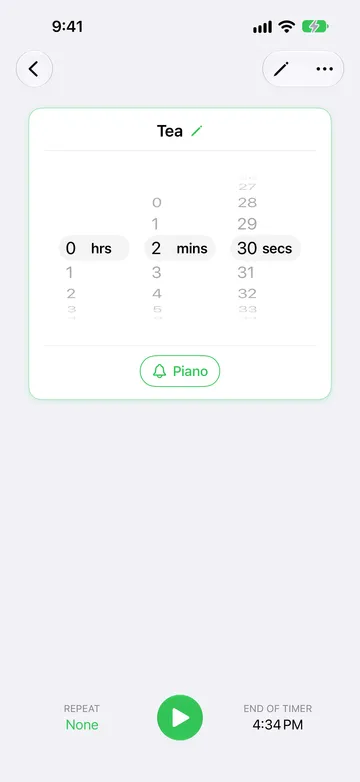
Section titled “Start and control a Timer”Open a saved Timer from the timer list to see it ready to start. Before you start, you can turn the wheels to change its duration, tap the sound button to change When Timer Ends, or tap Repeat. These changes are saved to the Timer. End of Timer shows when it would finish if you started it now. Tap the play button to start.
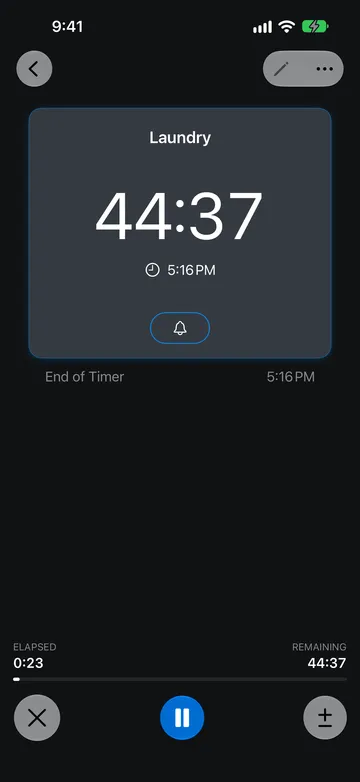
While the Timer runs, it shows the time remaining and the clock time it will end. Use the buttons at the bottom of the screen:
- Pause and Resume stop and restart the countdown. Paused time doesn’t count toward the Timer.
- Cancel (×) ends the countdown. If an Undo message appears, tap it within a few seconds to continue where you left off.
- Adjust Duration (±) adds or removes time. See Add or remove time.
- Previous and Next appear only for a Timer with repeats.
You can also start a saved Timer directly from its row in the timer list, or start several saved timers at once. To keep the screen on while a Timer runs, see Keep Timer+ open on screen.
Add or remove time
Section titled “Add or remove time”Tap Adjust Duration (±) while the Timer is running or paused. Choose +1h, +10m, or +1m to add time, or −1h, −10m, or −1m to remove it.
A remove button is unavailable when less than that much time is left. If removing time brings the Timer to zero, it finishes right away.
Adjusting time only changes the countdown that’s running now. It doesn’t change the Timer’s saved duration. To change the saved duration, see Change a Timer.
When the Timer finishes
Section titled “When the Timer finishes”When the countdown reaches zero, the Timer plays its When Timer Ends sound and shows Done with the time it finished. It then counts up from zero with a minus sign, such as “−0:12,” so you can see how long ago it finished.
From the finished Timer, you can:
- Tap Restart to run it again from the start.
- Tap ± to add more time and continue counting down.
- Tap × to dismiss the result.
A Timer doesn’t wait for you or count overtime. If you need a step that keeps counting after zero until you confirm it, use a Routine step that waits for Done.
If you don’t dismiss it, the finished Timer returns to ready after the time chosen in Settings > Reset Done Timers. The default is After 5 minutes.
Change a Timer
Section titled “Change a Timer”When a Timer isn’t running, open it and tap Edit (the pencil at the top of the screen) to change any of its settings, including the duration format and Live Activity. You can also change the duration, sound, and repeats directly on the ready screen, as described in Start and control a Timer.
While a Timer is running or paused, you can still:
- Tap its name to rename it.
- Tap the bell button to change When Timer Ends.
- Choose a color from the More (…) menu.
To change the saved duration or repeats of a running Timer, first cancel it or let it finish, then edit it. To change only the current countdown, add or remove time.
The More (…) menu also contains History, which lists this Timer’s completed and cancelled runs, and Delete.
Start a Timer at a set time
Section titled “Start a Timer at a set time”Timer+ doesn’t have an in-app option for starting a Timer at a later time. To start a saved Timer automatically at a time of day, use a Shortcuts automation. See How to Start a Timer at a Scheduled Time.
Try these Timer examples
Section titled “Try these Timer examples”A cup of tea
Section titled “A cup of tea”Create a Timer named “Tea” and set it to 2 minutes 30 seconds. Set When Timer Ends to a sound you’ll notice and choose Once. Tap the checkmark to save it. Next time, open Tea from your timer list and tap the play button.
A long load of laundry
Section titled “A long load of laundry”Create a Timer named “Laundry,” choose Hours, Minutes, Seconds, and set 45 minutes. Leave Live Activity on so you can check it from the Lock Screen. If the machine is running late, tap ± and add +10m without changing the saved 45 minutes.
Regular screen breaks
Section titled “Regular screen breaks”Create a 20-minute Timer named “Screen break” and set Repeat to 3 times. The Timer counts down 20 minutes three times in a row, playing its sound after each one, and shows 1 of 3, 2 of 3, and 3 of 3 as it goes. If you want a timed break between the 20-minute periods, build it as a Routine instead.
Quick Timers
Section titled “Quick Timers”A Quick Timer is a Timer you start right away without saving it. Use one for a countdown you don’t need again, such as a 5-minute reminder.
In the timer list, tap + to open Add Timer. The Quick Timer row offers:
- 30 sec, 1 min, 5 min, 10 min, 30 min, and 1 hr buttons, which start a Quick Timer of that length immediately with your default sound. Scroll the row sideways to see them all.
- A Timer button at the start of the row, which opens the Quick Timer screen. Enter an optional name and a duration, choose a sound, and tap Start.
- A Stopwatch button, which starts a Quick Stopwatch.
You can also open the Quick Timer screen by pulling down on the timer list. Other apps can start Quick Timers with the Timer+ URL scheme.
A Quick Timer appears in your timer list while it’s active and has the same run controls as a saved Timer, but it can’t repeat. After it finishes and you dismiss it, or when the Reset Done Timers time passes, it’s removed from the list. A cancelled Quick Timer is removed once its Undo message is gone. When Timer History is on in Settings, finished and cancelled Quick Timers are still recorded there.
Related guides
Section titled “Related guides”- Choose the right timer type
- Create and use a Routine
- Alerts and sounds
- Timer Not Showing on iPhone Lock Screen?
- How to Start a Timer at a Scheduled Time
- Start multiple saved timers at once
- Change the Default Timer Sound
- Changing the Volume in Timer+
- Use the Timer+ URL Scheme
- Timer+ Shortcuts for iPhone and iPad