Countdown
Count down to a date and time, then count the time since
A Countdown shows how much time is left until a specific date and time, such as a vacation, a birthday, or a launch day. When that moment arrives, Timer+ plays the sound you chose and the Countdown starts counting the time since the date.
Choose a Countdown when the thing you are waiting for is on the calendar. To time a set length, such as 10 minutes of cooking, use a Timer instead. Not sure which type fits? See Choose the Right Timer Type.
Create a Countdown
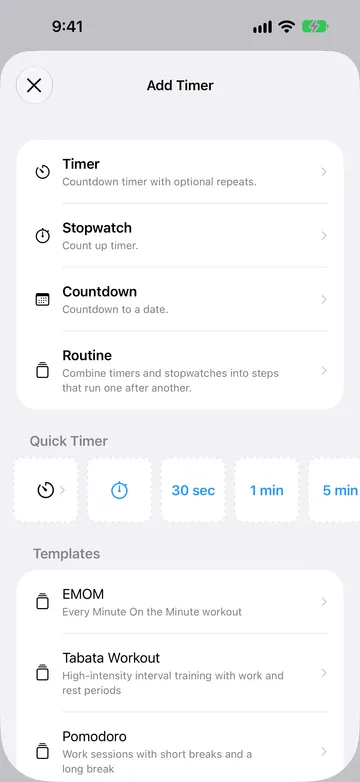
Section titled “Create a Countdown”- From the timer list, tap + to open Add Timer.
- Choose Countdown.
- Enter a name, such as “Vacation.” If you leave it blank, the Countdown is called “Countdown.”
- Choose the date on the calendar, then set the time.
- To change what plays at that moment, tap Sound.
- Tap the checkmark to save. On earlier versions of iOS, tap Save.
There is nothing to start. A Countdown begins counting as soon as you save it and keeps running until you delete it.
If you have reached the number of saved timers included without Timer+ Pro, Timer+ may offer an upgrade when you add another timer.
Choose the date and time
Section titled “Choose the date and time”A new Countdown starts one hour from now. Pick any date on the calendar and set the hour and minute of the moment you are counting toward. Choose a date in the future to count down, or a date in the past to count the time since it.
Every Countdown needs a time of day. For an event that lasts all day, such as a birthday, choose the time you want it to arrive, such as 12:00 AM or 9:00 AM.
A Countdown targets one exact moment. It uses your iPhone’s current time zone when you set it, and it does not repeat each year. If you travel to another time zone, the Countdown still ends at the same moment, so its time is shown in your new local time. For example, a Countdown set for 9:00 AM in New York appears as 6:00 AM when your iPhone is set to Los Angeles time.
What happens when the date arrives
Section titled “What happens when the date arrives”When the date and time arrive, Timer+ plays the Countdown’s sound and shows a notification, such as “Vacation done.” Notification permissions, Focus, and Silent mode affect whether you see and hear it. If you do not hear anything, check Timer+ sound troubleshooting and recommended notification settings.
The Countdown does not stop at that moment. It starts counting up and keeps showing the time since the date for as long as you keep it. The calendar icon beside the date changes to a calendar with a checkmark to show that the date has passed.
A Countdown has no start, pause, reset, or Done controls. To stop one, delete it.
Read the Countdown
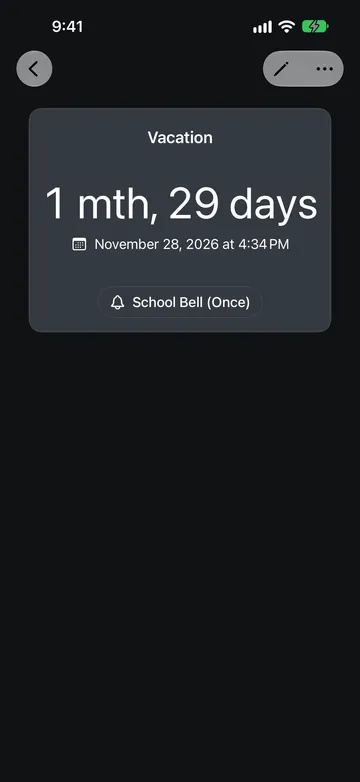
Section titled “Read the Countdown”Open a Countdown to see its name, the time remaining or elapsed, the full date and time, and its sound.
How the time appears depends on how far away the date is:
- More than 100 hours away: iOS shows the time in large units, such as “1 mth, 29 days.”
- Within 100 hours: Timer+ shows a live clock that counts down each second.
- Within 100 hours after the date: the live clock counts up from the date.
- More than 100 hours after the date: the time since the date appears in large units again.
In the timer list, a Countdown shows the same reading with a short date. The date includes the year when it is not in the current year and the time of day when it is within 100 hours.
Choose a sound
Section titled “Choose a sound”Tap Sound in the Countdown editor, or tap the sound button on an open Countdown, to open When Countdown Ends:
- Choose a sound, or None for a silent Countdown.
- Choose Once to play the sound one time, or Loop to repeat it. The sound button shows “(Once)” after a sound that plays once.
- To keep a favorite near the top of the list, open its … menu and choose Pin.
A Countdown has one sound, at the date you set. It does not offer Announcements, reminders before the date, or Alarm. Changes you make from an open Countdown save right away. Changes in the editor save when you tap the checkmark.
iOS limits notification sounds, so a looped sound stops after about 30 seconds when Timer+ is not open. For more about sounds and how they are delivered, see Alerts and Alert delivery. To change the sound that new timers use, see Change the Default Timer Sound.
Change a Countdown
Section titled “Change a Countdown”You can change a Countdown at any time, including while it is counting:
- Change the date, name, or sound: open the Countdown and tap the edit (pencil) button. Tap the checkmark to save, or cancel to discard your changes. If you move the date into the past, the Countdown starts counting the time since it; move it into the future to count down again.
- Rename: tap the Countdown’s name.
- Copy for another event: in the timer list, swipe right on the Countdown and tap Duplicate. Give the copy a name, then edit its date.
- Delete: open the … menu and choose Delete, or swipe left on the Countdown in the timer list.
Countdowns do not have colors or Timer History, and the editor has no Live Activity setting.
Try these Countdown examples
Section titled “Try these Countdown examples”A vacation
Section titled “A vacation”Name the Countdown “Vacation” and choose the date and time your trip starts. Months ahead, it shows a reading such as “1 mth, 29 days.” In the last 100 hours before you leave, it switches to a clock you can watch tick down.
A birthday
Section titled “A birthday”Name the Countdown after the person and choose their birthday at 12:00 AM. A Countdown does not repeat, so after the birthday, edit it and choose next year’s date. To track several birthdays, duplicate the Countdown and change each copy’s name and date.
A launch day
Section titled “A launch day”For a product launch, exam, or deadline, set the exact launch time and choose a sound, such as a bell set to Once, so you hear when the moment arrives.
Days since a milestone
Section titled “Days since a milestone”To count up from an event that has already happened, such as the day you quit smoking or started a new habit, choose that date and time in the past. The Countdown immediately shows the time since then and keeps counting.