Alerts
Sounds, announcements, and when they play
An alert tells you that something has happened in a timer. It can play a sound, speak Announcements such as “10 seconds remaining,” or both. Each alert has a schedule: when it plays, such as when a Timer ends or halfway through a Routine step.
The alert options depend on the timer type. Timers, Stopwatches, and Routine steps can have alerts during the run. A Countdown plays its sound at the target date and time.
Alert options by timer type
Section titled “Alert options by timer type”| Timer type | Alert in the editor | Add more alerts | Announcements | Loop or Once |
|---|---|---|---|---|
| Timer | When Timer Ends | Halfway, Time Elapsed, Time Remaining, and recurring elapsed or remaining alerts | Yes | End alert only |
| Countdown | Sound, which plays when the Countdown ends | No | No | Yes |
| Stopwatch | No fixed start or end alert | Time Elapsed and recurring elapsed alerts | Name and Time Elapsed | Always once |
| Routine Timer step | When Timer Starts | Halfway, Time Elapsed, Time Remaining, and recurring elapsed or remaining alerts | Yes | Always once |
| Routine Stopwatch step | When Stopwatch Starts | Time Elapsed and recurring elapsed alerts | Name and Time Elapsed | Always once |
| Start Countdown | When Timer Starts | Halfway and Time Remaining | Yes | Always once |
| Routine | When Routine Ends | No | No | Always once |
A Quick Timer has a Sound row with Loop Sound and Play Once options. A Quick Stopwatch has no sound.
Choose a sound
Section titled “Choose a sound”Timer+ includes more than 30 built-in sounds, such as Beeps, Boxing Bell, Marimba, Piano, and School Bell. Choose None for no sound. You can’t add your own sounds; see Can I use my own sounds?
Tap a sound to select it and hear a short preview. To keep favorite sounds at the top of the list, tap the ellipsis (…) beside a sound and choose Pin. You can drag pinned sounds to reorder them.
Where the editor shows a Loop and Once control, choose how the sound plays:
- Loop repeats the sound.
- Once plays the sound one time. Timer+ shows these sounds with “(Once)” after the name, such as “School Bell (Once).”
Routine step alerts and When Routine Ends always play once.
Set the default sound
Section titled “Set the default sound”The default sound is the starting sound for new timers. Changing it does not change timers you already created. To change it, open Settings and tap Default Sound. For step-by-step instructions, see Change the Default Timer Sound.
New Timers, Countdowns, and Quick Timers start with the default sound set to loop. In a Routine, the first Timer step in each block, the Start Countdown, and each new alert start with the default sound set to play once. Stopwatches, transition steps, and When Routine Ends don’t start with a sound.
Add Announcements
Section titled “Add Announcements”Announcements use your device’s text-to-speech voice. They’re available in Timer, Stopwatch, and Routine step alerts. In an alert, switch to the Announcements tab and select one or more:
| Announcement | Example of what you hear |
|---|---|
| Name | The step’s name, such as “Work” |
| Up Next | “Up next: Rest” |
| Halfway | “Halfway” |
| Switch Sides | “Switch sides” |
| Time Elapsed | “30 seconds” |
| Time Remaining | “10 seconds remaining” |
The available options depend on the clock: Stopwatch alerts offer Name and Time Elapsed. Each option shows a preview of what it will say. Drag selected Announcements to set the order you’ll hear them. Choose Off to turn off all Announcements for that alert.
An alert can combine a sound with Announcements. For example, at 10 seconds left in a Work step followed by Rest, a Beeps sound with Time Remaining and Up Next plays Beeps and says “10 seconds remaining. Up next: Rest.”
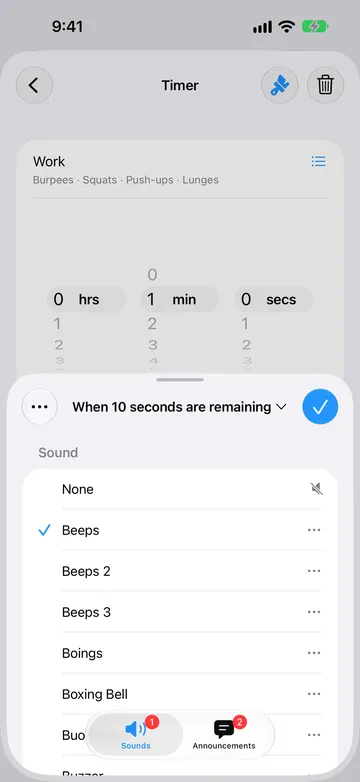
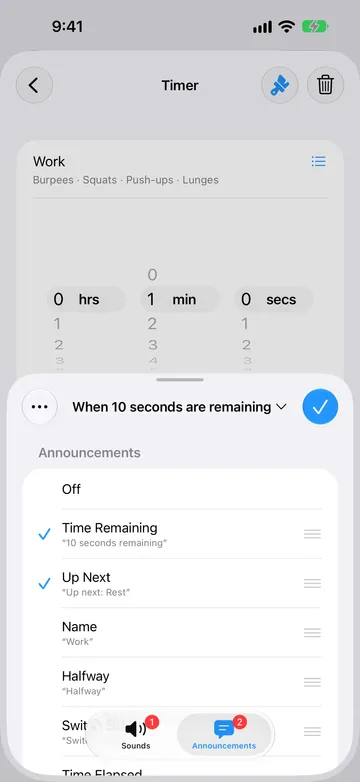
Announcements can also play in background notifications, subject to notification settings and limits. See When alerts play.
Choose when an alert plays
Section titled “Choose when an alert plays”Open the Timer, Stopwatch, or Routine step editor and tap Add Alert. The available schedules depend on the timer type, as shown in the overview. A Routine Timer step also has When Timer Starts, which you can set to a sound, Announcements, or None. Timer schedules include:
- Halfway plays halfway through the step’s duration.
- Time Remaining plays when a chosen amount of time is left, such as 10 seconds.
- Time Elapsed plays once after a chosen amount of time, such as 30 seconds.
- Every … after start plays at regular elapsed-time intervals, such as every minute.
- Every … before end plays at regular remaining-time intervals, such as at 4, 3, 2, and 1 minute remaining in a 5-minute step.
Recurring alerts play during the timed portion of each step, without an extra occurrence at its start or end. They restart each time the step repeats and stop at zero even if Wait for Done is enabled.
After choosing a schedule, tap Next to choose its sound and Announcements. New alerts start with the matching Halfway, Time Elapsed, or Time Remaining Announcement selected. To change the time of an existing Time Remaining alert, open it and tap its title, such as When 10 seconds are remaining.
The step lists its alerts in the order they play, such as Halfway followed by 10 seconds left. To remove an alert, open it, tap the ellipsis (…), and choose Delete, or swipe left on the alert.
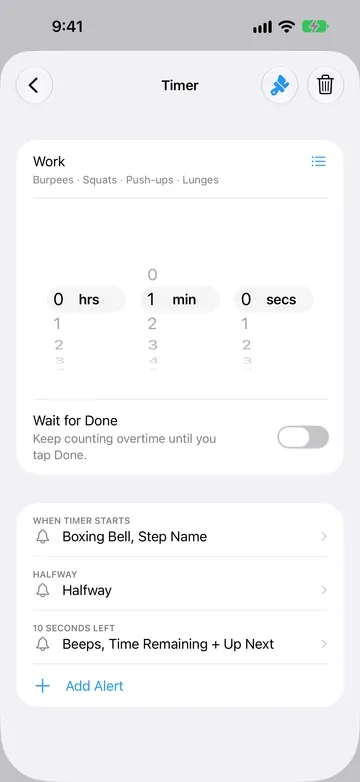
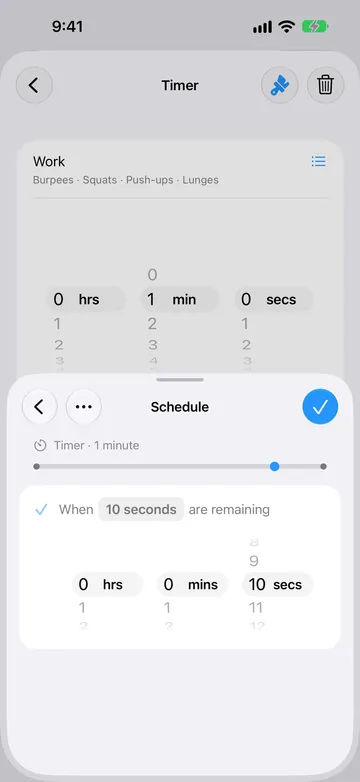
You can add one alert of each schedule type per timer or step. Once a type is in use, it is no longer offered in Add Alert. Edit the existing alert to change its time, sound, or Announcements.
Start Countdown keeps its simpler choices: When Timer Starts, Halfway, and Time Remaining. It does not offer elapsed or recurring alerts. Routine steps do not offer When Timer Ends; the next step’s Start alert can signal the transition.
Timer alerts
Section titled “Timer alerts”A Timer plays its When Timer Ends sound when it reaches zero. If the Timer repeats, the sound also plays as each repeat finishes.
- In the Timer editor, tap When Timer Ends.
- Choose a sound, or choose None.
- Choose Loop or Once.
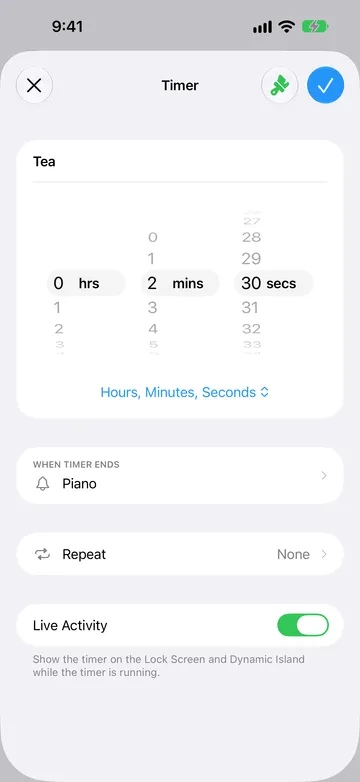
You can also change the sound from the Timer’s screen. For more about Timer settings, see When the Timer ends.
Countdown alerts
Section titled “Countdown alerts”A Countdown plays its sound when it reaches the target date and time. In the Countdown editor, tap Sound to open When Countdown Ends, choose a sound, then choose Loop or Once. You can also tap the sound shown on the Countdown’s screen, such as “School Bell (Once).” There is no alert while a Countdown counts up after its date. See Countdown sound.
Stopwatch alerts
Section titled “Stopwatch alerts”A Stopwatch offers Time Elapsed and recurring alerts (Every … after start) with a sound, Name, Time Elapsed, or both sound and Announcements. For example, add an alert every minute to hear how long you have been counting. Recording a lap does not play an alert.
A Stopwatch step inside a Routine also has When Stopwatch Starts. Set it to a sound, Announcements, or None to choose what plays when the Routine enters that step. See Use a Stopwatch.
Routine alerts
Section titled “Routine alerts”A Routine can have alerts in these places:
- Each Timer step has When Timer Starts plus optional Halfway, elapsed, remaining, and recurring alerts. The same options apply to Timer steps between steps or between repeats.
- Stopwatch steps have When Stopwatch Starts plus optional elapsed and recurring elapsed alerts.
- Start Countdown has only When Timer Starts, Halfway, and Time Remaining.
- When Routine Ends plays one sound, once, when the whole Routine finishes.
When you add a step, Timer+ copies alerts from the previous step of the same type in that block, so check them before starting.
Timer+ may offer an upgrade to Timer+ Pro when you tap Add Alert on a step that already uses its free alert allowance. Existing alerts remain editable.
For more about alerts in Routines, see Add step alerts and Choose what plays when the Routine ends.
When alerts play
Section titled “When alerts play”How alerts play depends on whether Timer+ is open.
While Timer+ is open on screen, Timer+ plays scheduled sounds and Announcements, including one-time and recurring alerts. Alerts may briefly lower music or other audio. To keep the screen on, see Keep Timer+ open on screen.
When Timer+ is in the background, your device is locked, or the app is closed, Timer+ uses iOS notifications for:
- A Timer ending, and each repeat finishing
- A Countdown reaching its date
- A Routine step starting, including its Start alert
- Halfway, elapsed, remaining, and recurring alerts during a Timer, Stopwatch, or Routine step
- A reminder when a Routine step with Wait for Done reaches zero
- A Routine ending
A notification can play the alert’s sound and spoken Announcements, including Announcements without a separate sound. iOS limits notification audio to 30 seconds, including looped sounds and speech. Don’t rely on a sound when a Wait for Done step reaches zero; see Choose how steps finish.
iOS notification settings control background alerts. Allow notifications for Timer+, turn on Time-Sensitive Notifications, and allow Timer+ in any Focus you use. Silent mode mutes notification sounds. See Recommended Notification Settings.
Background notifications share a limited number of slots across all your timers. Timer+ schedules upcoming alerts in time order; frequent recurring alerts can fill those slots sooner. If Timer+ shows Notification Limit Reached, open the app to schedule more alerts. Check the alert coverage shown in the editor when choosing a recurring interval.
If your iPhone is locked and you’re wearing an unlocked Apple Watch, notifications may go to your watch without Timer+ sounds. See Apple Watch notifications. To hear notification text through headphones, see Get Timer+ notifications read aloud on headphones.
If you don’t hear an alert
Section titled “If you don’t hear an alert”- No sound in the background: check notification permission, Silent mode, alert volume, and Focus. See Why Timer+ Sounds Aren’t Playing.
- Too quiet while Timer+ is open: adjust the volume while a sound is playing. See Changing the Volume in Timer+.
- Missing a one-time or recurring alert: check its schedule, notification settings, and any notification-limit warning. Open Timer+ to refresh background coverage.
- Alert is set to None: open the alert and choose a sound, or select Announcements.
- Looping sound stops early: iOS limits notification sounds to 30 seconds.
- No vibration: Timer+ doesn’t offer vibration settings. See Why Doesn’t Timer+ Support Vibration Alerts?