Routine
Run Timer and Stopwatch steps in order
A Routine is one of the four Timer+ timer types: a saved timer that runs a sequence of Timer and Stopwatch steps in order. Use one when a task has several parts, such as a workout with rests, a focus session with breaks, or a recipe with timed stages.
You can build a Routine from scratch or copy a routine template such as EMOM, Tabata Workout, or Pomodoro. A copied template becomes an ordinary Routine that you can edit without changing the original template.
Create a Routine
Section titled “Create a Routine”- In the timer list, tap + to open Add Timer.
- Choose Routine to start from scratch, or choose EMOM, Tabata Workout, or Pomodoro under Templates.
- Give the Routine a name.
- Add Timer or Stopwatch steps to its first block.
- Adjust the block, step, and alert options you need, then tap the checkmark to save the Routine. To save a new Routine and begin immediately, tap Start.
If you add a Routine while viewing a folder, Timer+ saves it in that folder.
Start with one block and only the steps you need. You can add more blocks, repeats, and transition steps later.
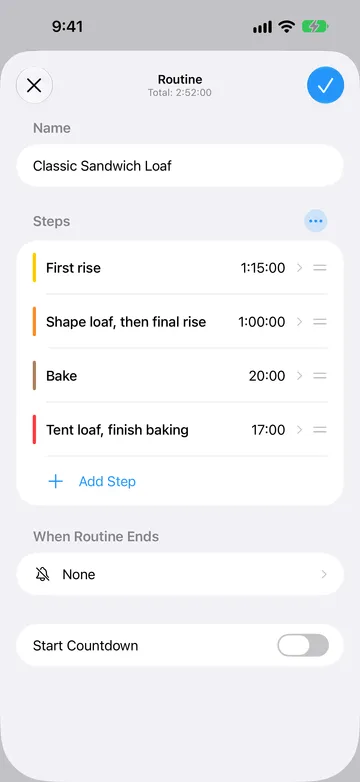
Each template starts with one repeating block:
- EMOM (Every Minute On the Minute): ten 1-minute Work repeats.
- Tabata Workout: eight 20-second Work repeats, each followed by a 10-second Rest, including the last.
- Pomodoro: four 25-minute Focus repeats with a 5-minute Break between them. The template does not include a longer final break.
Each template step plays your default sound when it starts. Change any of these settings after you add the template.
Add Timer and Stopwatch steps
Section titled “Add Timer and Stopwatch steps”Every step in a Routine is one of two types:
- A Timer step counts down from a duration, like a Timer. At zero, it can continue to the next step or wait for you to tap Done.
- A Stopwatch step counts up from zero until you tap Done, like a Stopwatch.
In a block, choose Add Step, then choose Timer or Stopwatch.
Each step can have its own name, color, and alerts. Timer and Stopwatch steps offer schedules suited to their clock type. Use names that describe what to do, such as “Preheat,” “Plank,” “Rest,” or “Q&A,” rather than names that only repeat the clock type.
Add steps in the order you want them to run. Use the Routine editor to reorder, duplicate, edit, or delete a step. Each block must contain at least one step before you can save or start the Routine.
When you add another step of the same type, Timer+ copies settings from the previous one. Check its duration, alerts, and Wait for Done setting before you use it.
Organize steps into blocks
Section titled “Organize steps into blocks”A block is a group of steps that runs in order. Each block has its own repeat count and optional steps between its main steps or repeats.
Open the ellipsis (…) beside Steps or a numbered block heading to see Block Options. This menu contains the controls for adding repeats, transition steps, and more blocks.
One block is enough for many Routines. Add more blocks when the Routine has distinct parts that should have different repeat settings. In Block Options, choose Add Block. Adding another block requires Timer+ Pro. For example:
Block 1: a Warmup step
Block 2: the main workout, repeated 4 times
Block 3: a Cooldown step
Blocks run from top to bottom and do not nest inside one another. The editor numbers multiple blocks; blocks do not have their own names.
Repeat a block
Section titled “Repeat a block”In Block Options, choose Add Repeats, then use the Repeat row to set how many times the block runs. The editor offers 2 through 99 total passes, or None for one pass. A block with two repeats runs its full sequence twice before the next block begins; it does not run once and then repeat twice more.
For a block with steps A and B:
Two repeats: A → B → A → B
During the Routine, the repeat counter appears without an extra label, such as 2 of 4.
Choosing None runs the block once. Because there is no boundary between repeats, its Between repeats step does not run.
Add a step between other steps
Section titled “Add a step between other steps”In Block Options, choose Add Between Steps to create a Timer that runs between the main steps. Set its name and duration, such as a 15-second transition. To change its placement, reopen Block Options, choose Between steps, then select Between steps or After each step.
Suppose a block contains steps A and B, and X is a 15-second transition:
Between steps: A → X → B
After each step: A → X → B → X
Choose Between steps when you want X only between one main step and the next. Choose After each step when every main step should be followed by X, including the last step in the block’s pass.
This difference matters in a one-step block:
Between steps: A
After each step: A → X
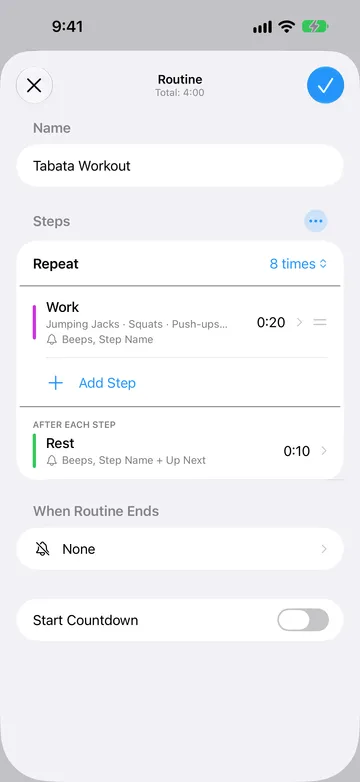
For a workout, X might be a transition or rest. For a recipe, it might be a short stirring step between longer stages.
Add a step between repeats
Section titled “Add a step between repeats”After setting a block to more than one repeat, open Block Options and choose Add Between Repeats when a step should run after one pass and before the next. It does not run after the block’s final repeat.
Set the new Timer’s name and duration. It runs between repeats of this block; to add a rest between different blocks, add an ordinary Timer step at the end or beginning of a block.
With steps A and B, two repeats, and a between-repeats step Y:
A → B → Y → A → B
You can combine a transition step with a between-repeats step. For two repeats, X as the transition, and Y between repeats, the placement expands like this:
Between steps: A → X → B → Y → A → X → B
After each step: A → X → B → X → Y → A → X → B → X
If X and Y are both rests, choosing After each step produces two rests together at a repeat boundary. Their durations add together. Choose Between steps if you only want Y at that boundary.
Name each repeat
Section titled “Name each repeat”Use Name Each Repeat when the action changes each time a step returns. In the step editor, tap the list icon beside the step’s name. The Default Name field holds the step’s regular name. Under Name Each Repeat, tap Add Name for each repeat, in order, and drag names to reorder them. Timer+ starts again at the beginning of the list if the block has more repeats than names. If a name is empty, Timer+ uses the step’s regular name for that repeat.
For example, a step named “Work” with the names Burpees, Squats, Push-ups, and Lunges in a five-repeat block appears as:
Burpees → Squats → Push-ups → Lunges → Burpees
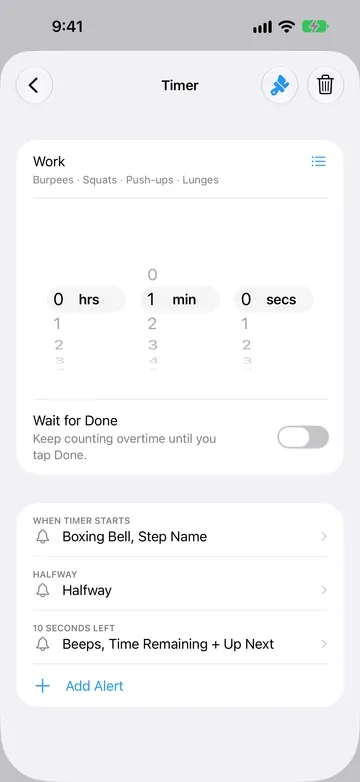
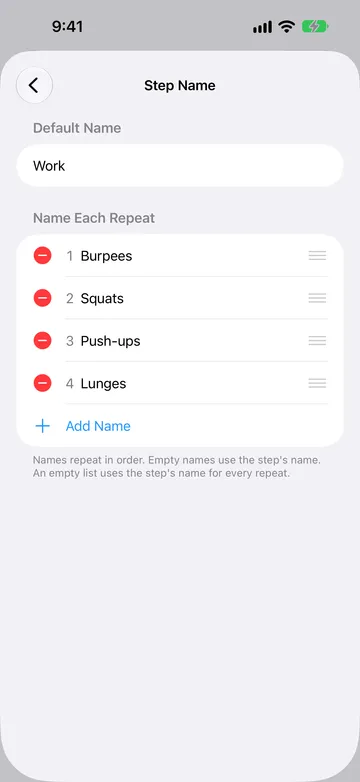
The Routine still has one editable step, but its displayed name changes with the repeat.
Add a Start Countdown
Section titled “Add a Start Countdown”Turn on Start Countdown in the Routine editor to give yourself time to get ready before the first block begins. New Start Countdowns are five seconds long and named Get Ready by default. You can change the name, duration, color, and applicable Timer alerts.
The Start Countdown runs once at the beginning of the Routine. It does not repeat with the first block. The displayed total excludes this preparation time: a five-second Start Countdown followed by 30 seconds of steps takes 35 seconds from Start to completion. If you are already ready, tap Start Now to skip it and begin the first block immediately.
Choose how steps finish
Section titled “Choose how steps finish”Open a Timer step and set its Wait for Done toggle:
- Off: the Routine continues to the next step when the Timer reaches zero.
- On: the Timer counts overtime after zero until you tap Done.
Leave Wait for Done off for a step with a fixed ending, such as a 30-second rest. Turn it on when the duration is a target and you need to confirm the work is finished, such as checking food in the oven. Done becomes available once the Timer is in overtime; use Next to leave the step earlier.
A Stopwatch step always waits for you to tap Done because it has no fixed duration. A Routine containing a Stopwatch step or a Timer step that waits for Done does not have an exact planned finish time.
If a Timer is in overtime, Extend starts a fresh countdown while keeping the overtime already recorded. It waits for Done again when the extension reaches zero.
Control a running Routine
Section titled “Control a running Routine”Open a running Routine to see its current step and available controls:
- Pause and Resume stop and restart the clock. Paused time does not count toward the step’s measured time. Pause is unavailable during overtime.
- Next (the forward button) moves to the next step, including any transition or rest step. Using Next on the final step completes the Routine.
- Previous (the back button) revisits the previous step with a fresh clock. Previous and Next are unavailable while paused.
- Adjust Duration (the ± button) changes the time on the current step without changing the saved Routine.
- Lap records a Stopwatch reading without finishing that step. You can give laps labels.
- Cancel ends the entire run. If an Undo message appears, use it to restore the run.
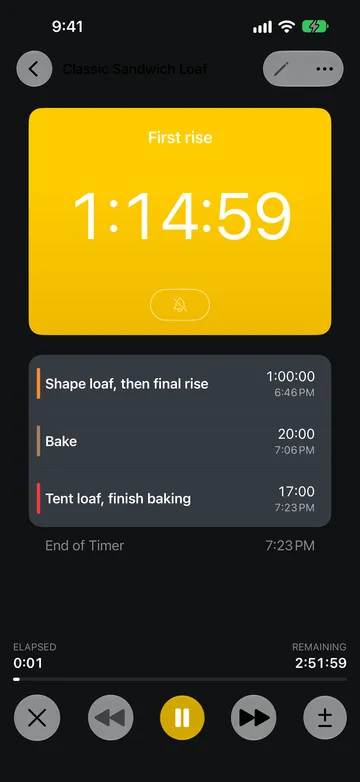
When the Routine finishes, Restart begins a new run. Done dismisses the finished result.
To change the saved steps or block settings, wait until the run finishes or cancel it, then open Edit. Changing the running clock does not rewrite the saved Routine.
Choose what plays when the Routine ends
Section titled “Choose what plays when the Routine ends”Use When Routine Ends in the Routine editor to choose the sound for the completion of the entire Routine. The sound plays once. This picker does not add Announcements.
To hear an alert as the next step begins, configure When Timer Starts for a Timer step or When Stopwatch Starts for a Stopwatch step. The Routine editor does not currently offer a new end alert for each step.
Existing alerts
Section titled “Existing alerts”If a Routine already contains a step-end alert, you can still edit or delete it. A step-end alert on a Timer using Wait for Done is tied to tapping Done, rather than reaching zero. At the Routine’s final step, the Routine completion alert takes priority over that step’s end alert; they are not two sounds that always play together.
Add step alerts
Section titled “Add step alerts”A Routine Timer step has a fixed When Timer Starts alert, which you can set to None. Add Alert offers these additional schedules:
- Halfway
- A chosen amount of Time Remaining
- A chosen amount of Time Elapsed
- Every … after start, for recurring elapsed-time alerts
- Every … before end, for recurring remaining-time alerts
An alert can contain a sound, Announcements, or both. Timer step alerts offer Name, Up Next, Halfway, Switch Sides, Time Elapsed, and Time Remaining Announcements. Put them in the order you want to hear them.
Stopwatch steps have When Stopwatch Starts and offer Time Elapsed and recurring elapsed-time alerts. Their Announcements are Name and Time Elapsed.
Recurring alerts play during the step’s timed portion, without an extra occurrence at the start or end. They restart each time the step repeats and stop at zero even with Wait for Done enabled.
You can add one alert of each schedule type per step. Used types disappear from Add Alert; edit the existing alert to change its time, sound, or Announcements.
Start Countdown offers only When Timer Starts, Halfway, and Time Remaining, without elapsed or recurring alerts. Routine steps do not offer new end alerts; the next step’s Start alert can signal the transition.
Without Timer+ Pro, Add Alert may offer an upgrade instead of a new alert. The fixed When Timer Starts alert counts toward the free allowance, even when it is set to None. Existing alerts remain editable.
Sounds and Announcements can also play in background notifications or while your device is locked, subject to notification permissions and limits. All timers share a limited number of notification slots, scheduled in time order. Frequent recurring alerts fill those slots sooner. Check the coverage shown in the editor, and open Timer+ when a limit warning appears to schedule more alerts. If you do not hear an alert, check Timer+ sound troubleshooting and recommended notification settings.
For how alerts work across timer types, see Alerts. To adjust alert volume, see Changing the Volume in Timer+. To change the sound that new timers use by default, see Change the Default Timer Sound.
Try these Routine examples
Section titled “Try these Routine examples”A circuit with transitions and a water break
Section titled “A circuit with transitions and a water break”Create one block with 40-second Timer steps named “Squats” and “Push-ups.” In Block Options, choose Add Between Steps and name the new 20-second Timer “Transition.” Leave its placement as Between steps. Set the block to two repeats, then add a 60-second Timer named “Water” Between repeats.
The Routine runs:
Squats → Transition → Push-ups → Water → Squats → Transition → Push-ups
A cooking Routine that waits for you
Section titled “A cooking Routine that waits for you”Add a 12-minute Timer step named “Simmer” and turn on Wait for Done. When the Timer reaches zero, check the food; Timer+ counts overtime until you tap Done. Follow it with a 5-minute Timer step named “Rest” with Wait for Done off.
A timed presentation with open-ended questions
Section titled “A timed presentation with open-ended questions”Add a 20-minute Timer step named “Presentation” with Wait for Done off, followed by a Stopwatch step named “Q&A.” The Routine moves to Q&A automatically when Presentation reaches zero, while Q&A continues until you tap Done. Because the Stopwatch is open-ended, the Routine’s total finish time is not fixed.