Stopwatch
Measure how long something takes and record laps
A Stopwatch counts up from zero and measures how long something takes. Use one when you do not know the length in advance: a run, a meeting, a practice session, or how long a task really takes. Tap Lap to record split times without stopping the clock.
If you already know how long something should last, use a Timer instead. To compare every type, see Choose the right timer type.
Create a Stopwatch
Section titled “Create a Stopwatch”- From the timer list, tap + to open Add Timer.
- Choose Stopwatch.
- Optionally give it a name, such as “Run” or “Standup.” A Stopwatch without a name appears as Stopwatch.
- Optionally choose a color with the color button at the top of the screen.
- Tap the checkmark to keep it in your timer list, or tap Start to save it and start it right away.
The Live Activity switch is on by default, so a running Stopwatch can appear on the Lock Screen and in the Dynamic Island. See Timer not showing on the Lock Screen if it does not appear.
A Stopwatch offers Time Elapsed and recurring alerts (Every … after start) with a sound, Name and Time Elapsed Announcements, or both. For example, you can hear the elapsed time every minute. Recording a lap does not play an alert. See Alerts for schedules and background notification limits.
Start, pause, and reset
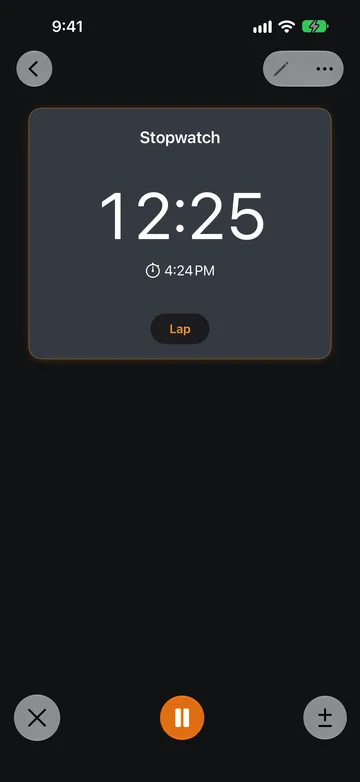
Section titled “Start, pause, and reset”Open a saved Stopwatch and tap the play button. While it runs, the controls at the bottom of the screen are:
- Pause and Resume in the center stop and restart the clock without losing the time already counted.
- The X on the left resets the Stopwatch to zero and saves the run to Timer History.
- The ± on the right adjusts the reading. See Adjust the reading.
Below the reading, Timer+ shows when the Stopwatch started, or Paused while it is paused. After you record a lap, this line shows the current lap and its time instead.
A Stopwatch keeps counting until you reset it. There is no Done button and no finish time. If you reset by mistake and Undo appears in your timer list, tap it to restore the run. Undo is available for a few seconds when Undo Reset is on in Timer+ Settings.
To rename a running Stopwatch, tap its name. To change the color, use the … menu. To change its other settings, reset it first, then tap the edit button.
Record laps
Section titled “Record laps”Tap Lap to finish the current lap and start the next one. The Stopwatch keeps running. You can also record a lap while it is paused.
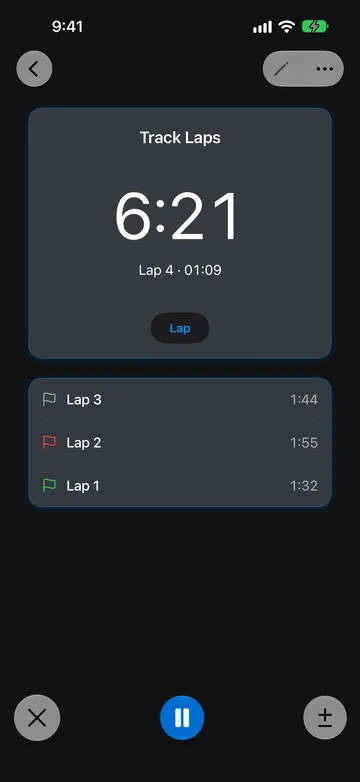
Completed laps appear below the Stopwatch with the newest lap at the top. Each row shows that lap’s own time, not the total time so far. The large reading shows the total, and the line below it shows the lap in progress, such as Lap 4 · 01:09.
Once you have at least two laps with different times, Timer+ marks the fastest lap with a green flag and the slowest with a red flag. If laps tie, each tied lap gets the flag. The lap in progress is not compared until you tap Lap again.
To add a note to a lap, tap the lap while the Stopwatch is running or paused. In Lap Label, type a short label such as “Uphill” and tap Save. The label replaces the lap number in the list. To remove a label, clear the text and tap Save. You cannot change labels after resetting the Stopwatch.
Laps are only split times. They do not trigger alerts, and you cannot delete a lap.
Adjust the reading
Section titled “Adjust the reading”If you started a Stopwatch late or forgot to pause it, tap ± to correct the reading. Choose an amount to add or subtract: 1 hour, 10 minutes, or 1 minute. You can adjust while the Stopwatch is running or paused. You cannot subtract more time than the reading shows.
The adjusted reading carries through to later laps and to the time saved in Timer History.
Review past runs
Section titled “Review past runs”Each time you reset a Stopwatch, Timer+ saves the run to Timer History, unless Timer History is off in Settings.
- To see one Stopwatch’s runs, open it, tap …, then tap History.
- To see runs from all your timers, open History from the timer list.
A Stopwatch run shows its final reading and the time it started and ended. If you recorded laps, tap View laps to see the lap times, labels, and fastest and slowest laps.
Without Timer+ Pro, Timer History may show only your most recent runs and offer an upgrade.
Stopwatch steps in a Routine
Section titled “Stopwatch steps in a Routine”A Routine can include Stopwatch steps. They count up and record laps the same way, but they finish differently:
| Stopwatch | Stopwatch step in a Routine | |
|---|---|---|
| How it ends | Tap X to reset and save the run | Tap Done to finish the step and continue to the next one |
| Other controls | Pause, Lap, adjust the reading | Pause, Lap, adjust the reading, plus Next and Previous |
| Effect on timing | None | The Routine’s total time becomes open-ended |
Use a standalone Stopwatch to measure one activity. Use a Stopwatch step when open-ended work is one part of a sequence, such as questions after a timed talk. See Add Timer and Stopwatch steps and Choose how steps finish.
Try these Stopwatch examples
Section titled “Try these Stopwatch examples”Time laps on a track
Section titled “Time laps on a track”Create a Stopwatch named “Track Laps” and tap Start at the line. Tap Lap each time you pass it. At the end, the green and red flags show your fastest and slowest laps. Reset the Stopwatch to save the run, then open View laps in History to compare it with earlier sessions.
Track time on a task
Section titled “Track time on a task”Start a Stopwatch named “Report” when you begin writing, and pause it during interruptions. Tap Lap when you switch sections, and label each lap, such as “Outline” and “Draft.” Reset the Stopwatch when you finish to save the total.
Quick Stopwatches
Section titled “Quick Stopwatches”A Quick Stopwatch is a temporary Stopwatch that you start without setting anything up. It is not saved for reuse.
To start one, tap + to open Add Timer, then tap the stopwatch button in the Quick Timer row. It starts counting right away. You can also start one from another app with the Timer+ URL scheme.
While it runs, a Quick Stopwatch works like a saved Stopwatch: you can pause it, record and label laps, and adjust the reading. When you reset it, Timer+ removes it from your timer list after the brief Undo period. The run and its laps stay in Timer History.
For a temporary Timer that counts down instead, see Quick Timers.