
Atalhos
Crie e controle timers com os Atalhos da Apple
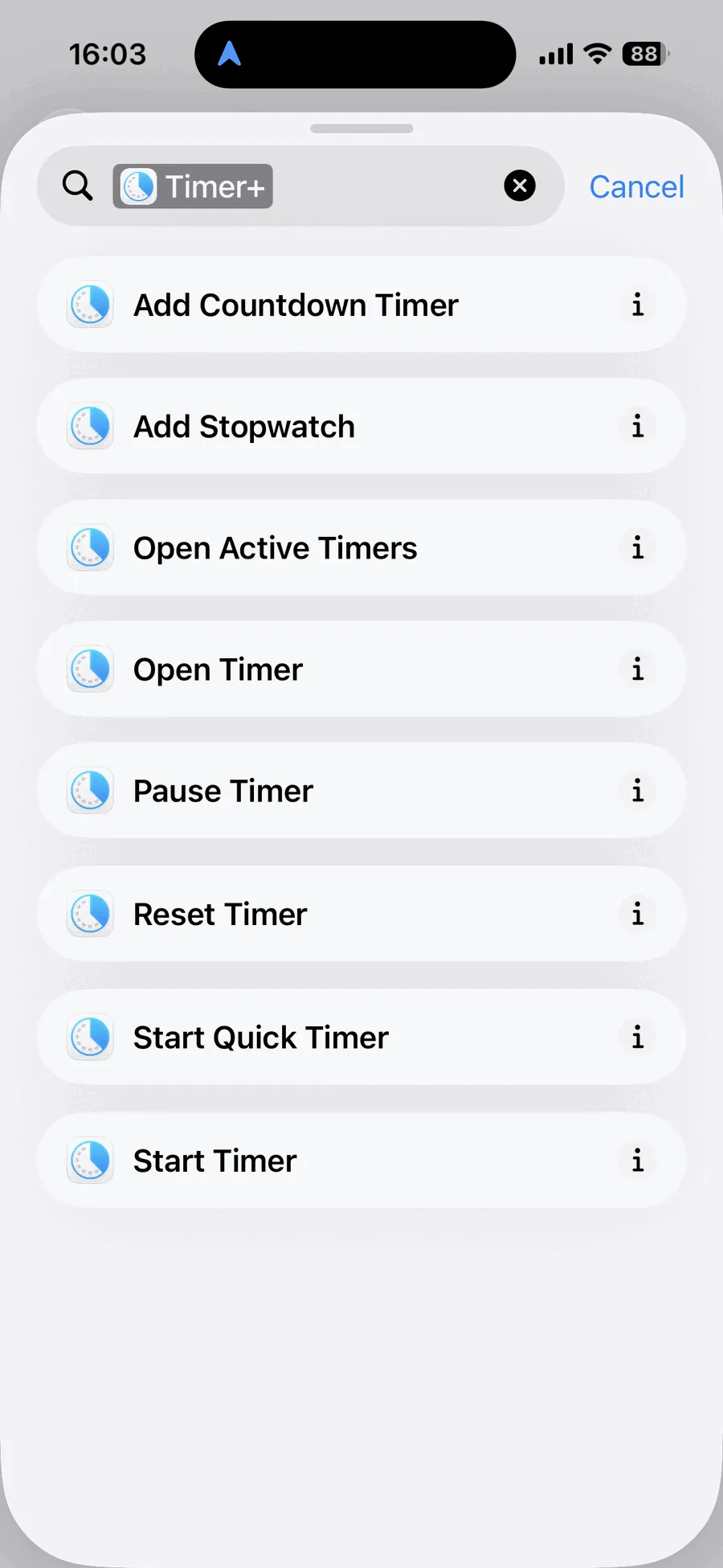
O Timer+ oferece oito ações para o app Atalhos da Apple no iPhone e no iPad. Use-as para criar timers salvos, iniciar e controlar timers, abrir um timer no Timer+ ou montar automações pessoais.
Catálogo de ações do Timer+ nos Atalhos
Seção intitulada “Catálogo de ações do Timer+ nos Atalhos”Estes são os nomes exatos das ações exibidos no app Atalhos.
| Ação | Parâmetros | O que faz | Abre o Timer+ |
|---|---|---|---|
| Adicionar timer de contagem regressiva | Duração; Nome e Som opcionais | Cria um Timer salvo | Não |
| Adicionar cronômetro | Nome opcional | Cria um Cronômetro salvo | Não |
| Abrir timers ativos | Nenhum | Abre a lista de timers ativos | Sim |
| Abrir timer | Timer | Abre um timer salvo selecionado | Sim |
| Pausar timer | Timer | Pausa um timer selecionado | Não |
| Cancelar | Timer | Zera um timer selecionado | Não |
| Iniciar timer rápido | Duração; Nome opcional | Cria e inicia um Timer rápido | Não |
| Iniciar timer | Timer | Inicia um timer salvo selecionado | Não |
Criar timers salvos
Seção intitulada “Criar timers salvos”Adicionar timer de contagem regressiva
Seção intitulada “Adicionar timer de contagem regressiva”Cria um Timer salvo sem iniciá-lo. A duração é obrigatória. Se quiser, você pode dar um nome ao timer e escolher o som que toca quando ele termina.
Adicionar cronômetro
Seção intitulada “Adicionar cronômetro”Cria um Cronômetro salvo sem iniciá-lo. O nome é opcional.
Iniciar e controlar timers
Seção intitulada “Iniciar e controlar timers”Iniciar timer
Seção intitulada “Iniciar timer”Inicia o timer salvo do Timer+ selecionado na ação. O Timer+ não precisa abrir quando o atalho é executado.
Pausar timer
Seção intitulada “Pausar timer”Pausa um timer do Timer+ selecionado sem abrir o app.
Cancelar
Seção intitulada “Cancelar”Zera um timer do Timer+ selecionado sem abrir o app.
Iniciar timer rápido
Seção intitulada “Iniciar timer rápido”Cria e inicia imediatamente um Timer rápido com a duração informada. Se quiser, você pode dar um nome a ele. O Timer rápido usa o seu som padrão e é excluído quando termina.
Use Iniciar timer rápido quando precisar de um timer avulso. Use Iniciar timer quando quiser executar um timer que você já salvou no Timer+.
Abrir o Timer+
Seção intitulada “Abrir o Timer+”Abrir timer
Seção intitulada “Abrir timer”Abre o Timer+ diretamente em um timer salvo selecionado.
Abrir timers ativos
Seção intitulada “Abrir timers ativos”Abre o Timer+ na lista de timers em execução ou pausados.
Usar as ações do Timer+ nos Atalhos
Seção intitulada “Usar as ações do Timer+ nos Atalhos”No app Atalhos, adicione uma ação e busque Timer+ para ver as ações disponíveis. Depois de montar um atalho, você pode executá-lo pelo app Atalhos, adicioná-lo a uma automação pessoal ou pedir à Siri para executá-lo pelo nome.
Para ver um exemplo prático, consulte Iniciar um timer em horário agendado.
Disponibilidade
Seção intitulada “Disponibilidade”Todas as ações do Timer+ nos Atalhos e todas as opções de timers salvos estão disponíveis sem o Timer+ Pro.
Para ter acesso com um toque na Tela de Início, compare os widgets do Timer+ para iPhone e iPad.
Atalhos e Atividades ao Vivo
Seção intitulada “Atalhos e Atividades ao Vivo”Timers iniciados pelos Atalhos não começam uma Atividade ao Vivo na Tela Bloqueada nem na Dynamic Island, porque o iOS exige que o Timer+ esteja aberto e visível quando um app de terceiros inicia uma. O timer continua em execução e o Timer+ pode notificar você quando ele terminar.