See Your Timers on Your Lock Screen
Only two types of timers can appear on your Lock Screen via Live Activities:
- countdown timers (no repeats)
- stopwatches
Timers must be started from the app or its widgets. Shortcuts can’t trigger Live Activities. These are just iOS limitations for third-party apps.
Enable timers on your Lock Screen
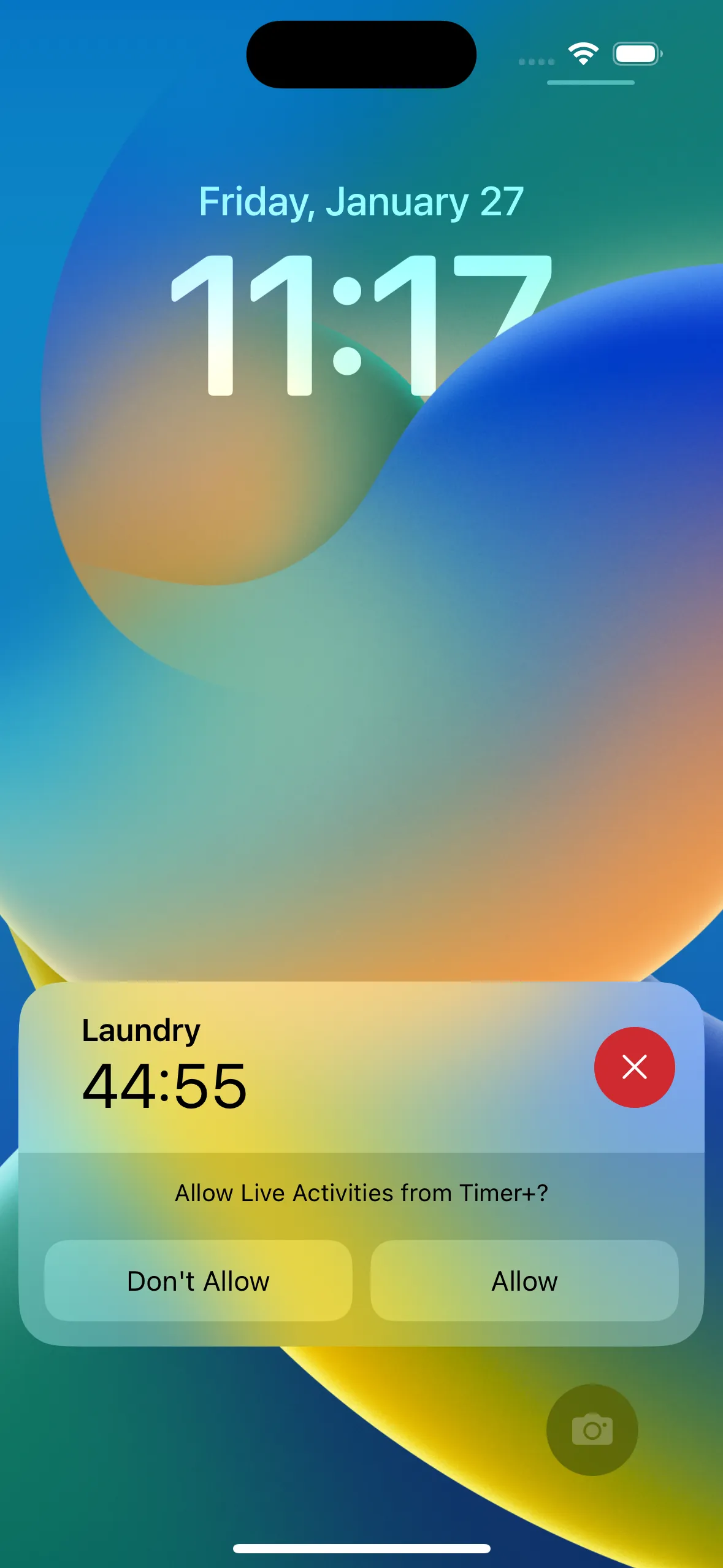
Section titled “Enable timers on your Lock Screen”The first time you see Timer+ on the Lock Screen, you’ll get a prompt asking if you would like to keep it.
Tap Allow to continue to see timers on your Lock Screen.
Manually Enabling / Disabling Timers on the Lock Screen
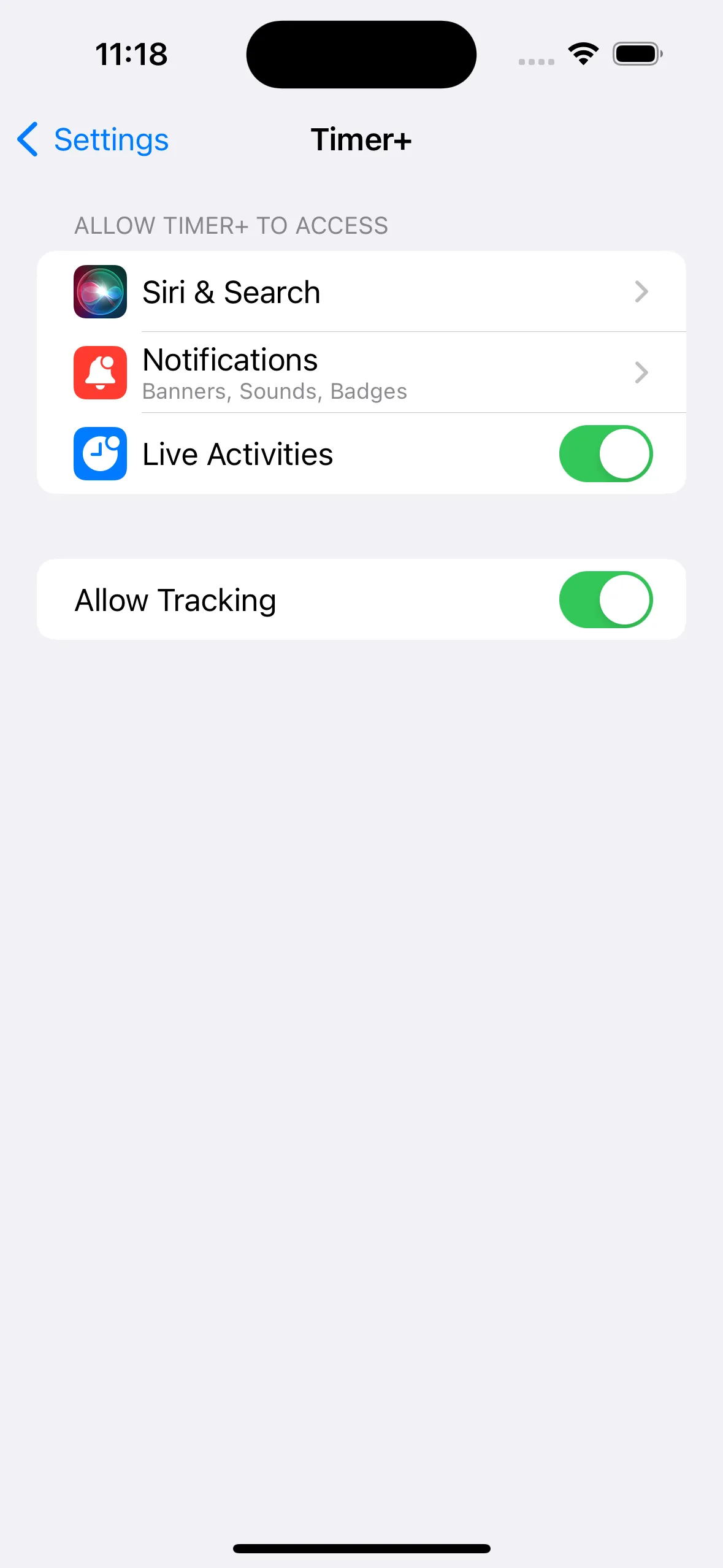
Section titled “Manually Enabling / Disabling Timers on the Lock Screen”- Open the Settings app and find Timer+‘s settings.
- Adjust the Live Activities toggle to your liking. If you leave it ON, your timers will show on the Lock Screen.
Timers blurred on your Lock Screen?
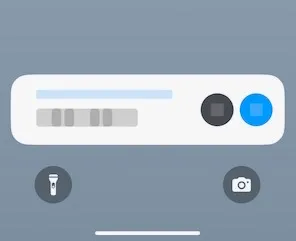
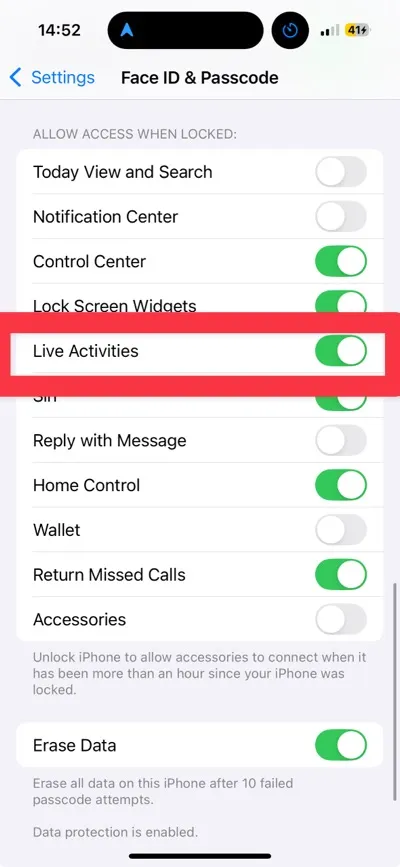
Section titled “Timers blurred on your Lock Screen?”If your timers are blurred out on your lock screen, it’s caused by a privacy setting on your device.
To fix it:
- Open the Settings app.
- Go to Face ID & Passcode (or Touch ID & Passcode).
- Scroll to Allow Access When Locked.
- Set Live Activities to On.
- This unblurs timers and other live updates on the Lock Screen.
- Note: This setting affects all apps, not just Timer+.
Limitations
Section titled “Limitations”- Custom timers and timers with repeats cannot be shown in the Lock Screen due to limitations set by Apple.
- If you start a timer via Shortcuts, your Watch, or a URL, you won’t see the timer on your Lock Screen until you open Timer+. Apple requires that third-party apps like Timer+ be in the foreground (app is open and visible to you) for them to send things to the Lock Screen.
- If you tapped Don’t Allow when you first saw Timer+ on the Lock Screen, you won’t be able to see it until you enable Live Activities again. See the previous section above (Manually Enabling / Disabling Timers on the Lock Screen).
- If you’re not seeing your timers on the Lock Screen anymore, open the Settings app and find Timer+ and tap it. There you’ll see the switch for Live Activities; make sure it’s on.